How to Get Backup a WordPress Website?

It’s very important to create a full backup for your WordPress Products as it helps you recover or restore your site when something goes wrong. You don’t know when something bad will happen and you will lose your site’s important data.
What is a WordPress Website Backup?
WordPress backups are copies of your site (data, files, and folders) that can be stored locally, on your hosting server, or on file storage servers. It serves as a disaster recovery tool and aids in the restoration of your site following a data loss event.
What is the Purpose of Backup a WordPress Website?
A backup is just a copy of your website that you may restore in the event of a disaster. It’s a surefire, preventative measure that will save you a lot of time and stress.
It’s similar to an insurance policy covering all of your labor, time, and money spent on your WordPress site.
What is Included in a WordPress Backup?
I’ll discuss in detail what defines Backup a WordPress website. Two components make up your WordPress site.
The first is your website’s files, such as theme and plugin files, scripts, and media, which form the site’s structure and functionality.
Following that, we have a MySQL database. Finally, this section keeps your blog posts, comments, and any settings you’ve made on the Settings page.
Using Your Hosting to Backup a WordPress Website
The most straightforward option is to select a hosting provider that does daily backups of your WordPress site.
Daily backups of all your WordPress core files, themes, and plugins, as well as your database, are included with managed hosting (including all of your media).
Backup WordPress Manually
Your WordPress folder has subfolders such as wp-content and wp-includes, files such as wp-config.php, theme, and plugins.
The wp-content folder includes all of your themes, plugins, caching, and uploads, among many other items. You can’t afford to lose any of this informatio
Backup Your WordPress Files Manually
Download your whole WordPress directory to build a copy of your WordPress files. How? You can access your server using cPanel or an SFTP client.
Backup your WordPress files manually via cPanel.
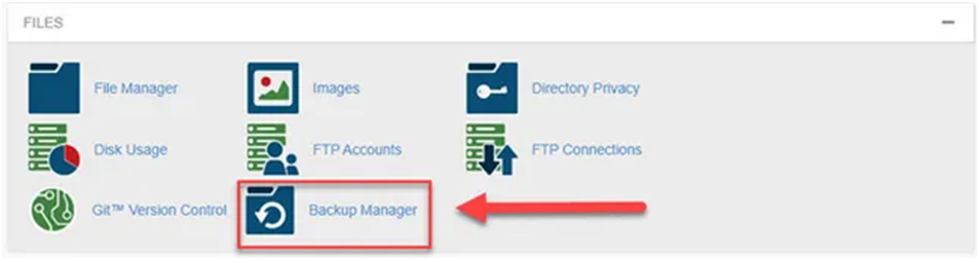
cPanel Backup :
It is so simple that you can do it in no time. For example, the following is the procedure:
- Navigate to cPanel from your web host’s control panel. For most web hosts, the cPanel is the first page you encounter upon logging in.
- Open the File Manager and go to your public HTML or home directory.
- Go to your WordPress directory from here. That’s the folder where you want to create a backup.
- Currently, you cannot download the WordPress folder directly from the File Manager. However, do not despair; compressing a folder is not difficult.
- After you’ve clicked on your WordPress file, go to the menu bar and select Compress. Second, right-click the folder and choose Compress from the drop-down menu that appears.
- From the dialogue box that appears, select the compression type, such as ZIP, Tar, or GZIP. I always use ZIP files.
- After that, click the Compress File(s) button and wait for the procedure to complete. Your server will keep a copy of your compressed WordPress folder.
- Right-click the newly generated archive and select Download from the options. Or right-click on the archive and choose Download from the context menu.
- Save your backup to a secured area on your hard drive. Read More


Comments
Post a Comment